Cara baru untuk melihat tab Anda
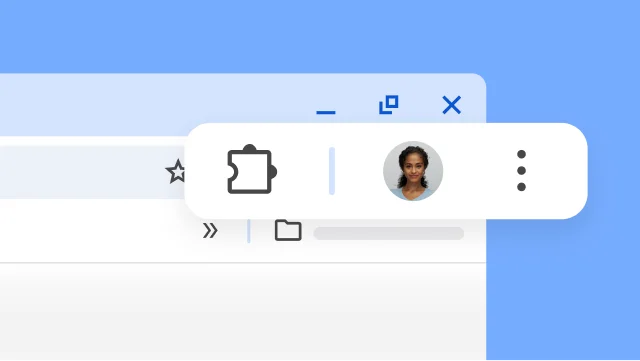
Tab vertikal memindahkan tab ke samping jendela, sehingga Anda dapat melihat judul tab lengkap, mengelola grup tab dengan mudah, dan mengosongkan ruang vertikal. Ini adalah pengaturan yang sempurna jika kamu biasanya membuka banyak tab sekaligus.
Untuk memindahkan tab, klik kanan kolom tab dan pilih Tampilkan tab secara vertikal.
Tanda tangani dan beri anotasi pada PDF Anda
Tidak perlu mendownload dan mencetak saat harus menandatangani PDF. Gunakan alat anotasi untuk membuat tanda tangan pribadi Anda, melengkapi formulir, dan menyorot teks.
- Buka PDF dan klik Anotasi .
- Pilih gaya dan warna pena atau stabilo Anda.
- Buat anotasi atau tanda tangan Anda, lalu klik Simpan .
Tips: Untuk mempermudah menggambar pada garis kecil, Zoom
Isi otomatis kartu loyalitas, detail penerbangan, dan info kendaraan Anda
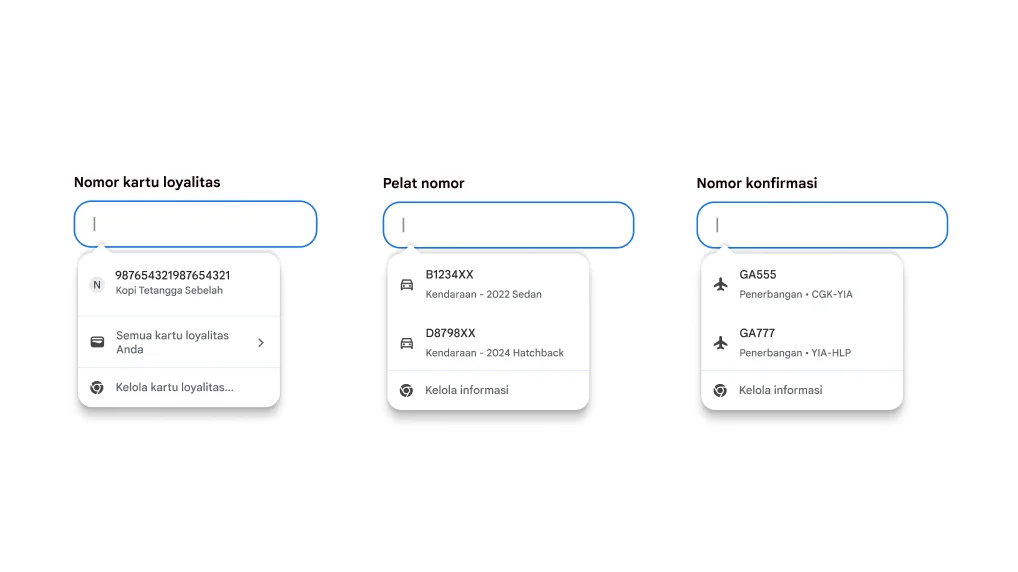
Tidak perlu susah payah mencari detail informasi. Chrome kini terintegrasi dengan Google Wallet untuk mengisi otomatis lebih banyak jenis informasi dengan cepat dan aman.
- Kartu loyalitas: Dapatkan reward Anda tanpa kartu fisik.
- Info kendaraan: Lengkapi formulir dengan cepat untuk mendapatkan penawaran harga asuransi, pemesanan parkir, atau registrasi mobil Anda secara online.
- Detail penerbangan: Check in lebih cepat dengan pengisian otomatis nomor konfirmasi dan tanggal.
Lihat dua halaman dalam satu tab
Tampilan terpisah menempatkan dua halaman berdampingan di tab yang sama. Hal ini memudahkan Anda membandingkan opsi, menonton video sambil membuat catatan, dan lainnya.
Untuk membuka tampilan terpisah, tarik tab lain ke tepi kiri atau kanan jendela browser. Atau, klik kanan link dan pilih Buka Link dalam Tampilan Terpisah.